SameGoal Special Programs
search
SameGoal Special Programs

Calendar Management Tools


Company > Blog > Calendar Management Tools
download

New Calendar Management Tools Coming Soon
July 17, 2026

Some deadlines are calculated based on school days or when the school year starts/ends, so it’s helpful for administrative users to configure building calendars.

We are in the process of adding new functionality to make managing calendars easier:

Copy Calendar to Other Buildings link

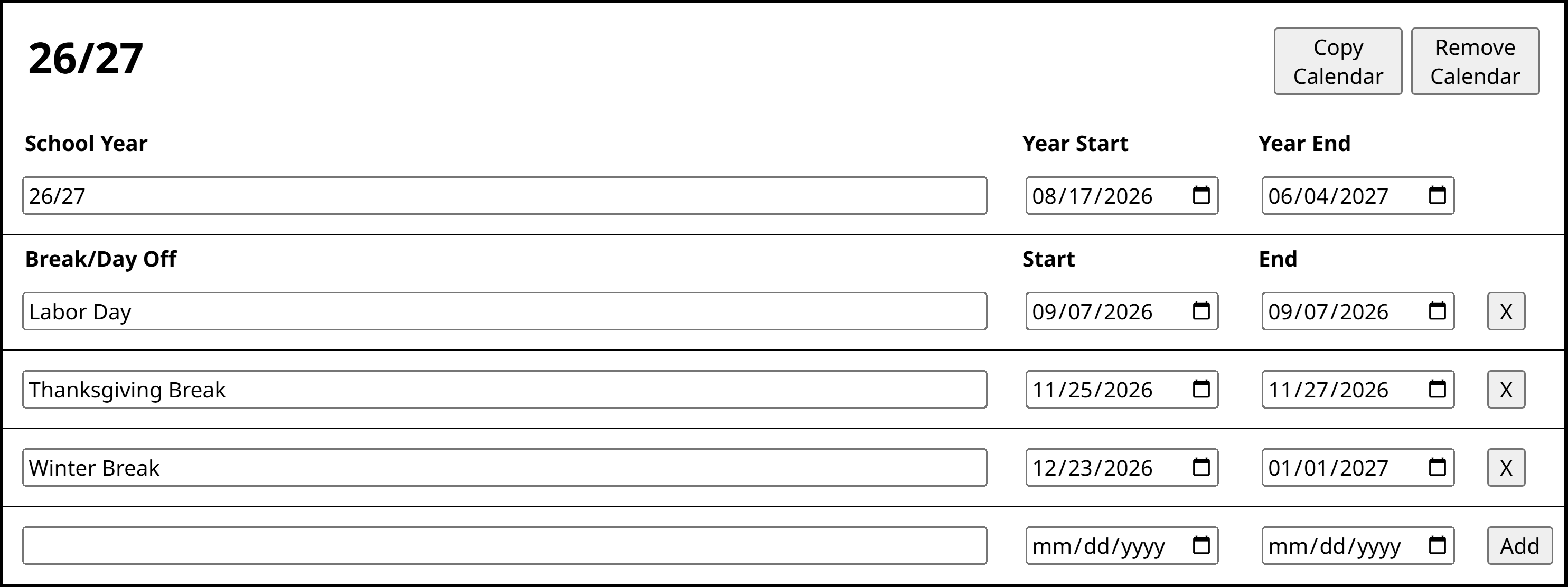
Some schools have multiple buildings that have very similar calendars. Instead of manually creating each of these calendars individually, administrative users will soon have the ability to copy one calendar to other buildings. When a calendar is copied over, the start and end dates will copy over along with any breaks/days off that have been added. Once a calendar has been copied over to a different building, the calendar can be updated as needed.
Steps
To copy a calendar to a different building:

  1. Navigate to Settings > Building Calendars and select the building you would like to copy from.
    • You may also choose to copy from the District Default.
  2. Search for the calendar year you want to copy and click Copy Calendar in the top right corner.
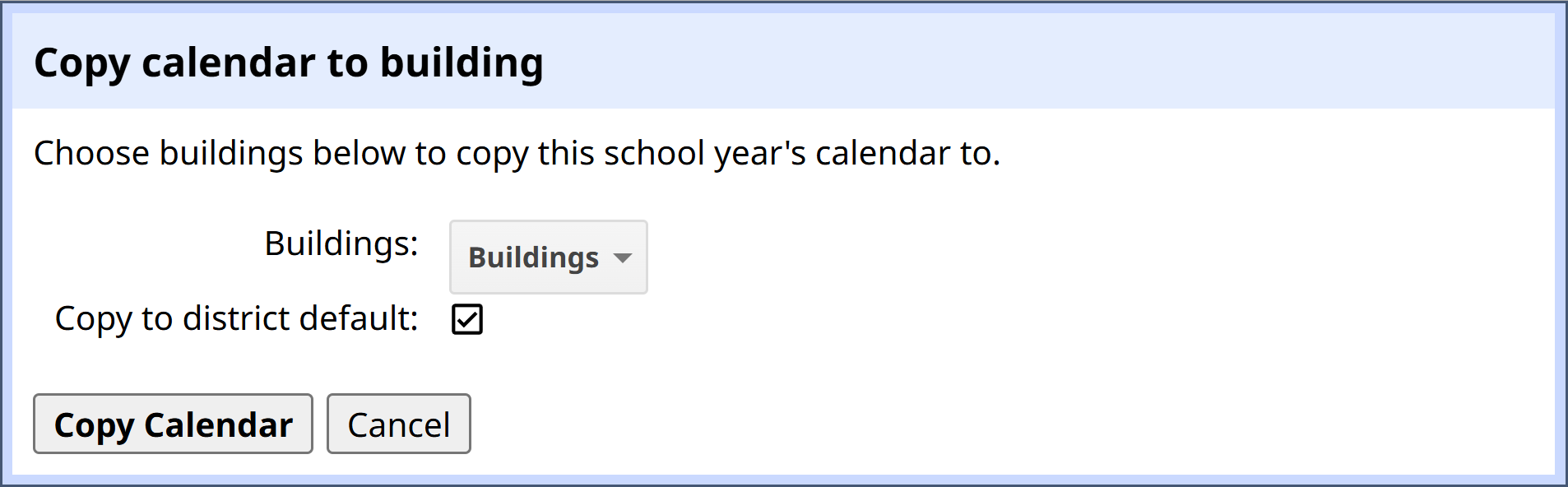
  3. Select which building(s) you want to copy to. If you would like to copy the calendar to the District Default, select the checkbox next to Copy to district default.
  4. Click Copy Calendar.


lightbulb Tip
A building cannot have multiple calendars with overlapping dates, so if the building you are attempting to copy to already has a calendar for the given year, the calendar will fail to copy over and you will see an error message at the top of the screen.

Merge Calendars When Merging Buildings link

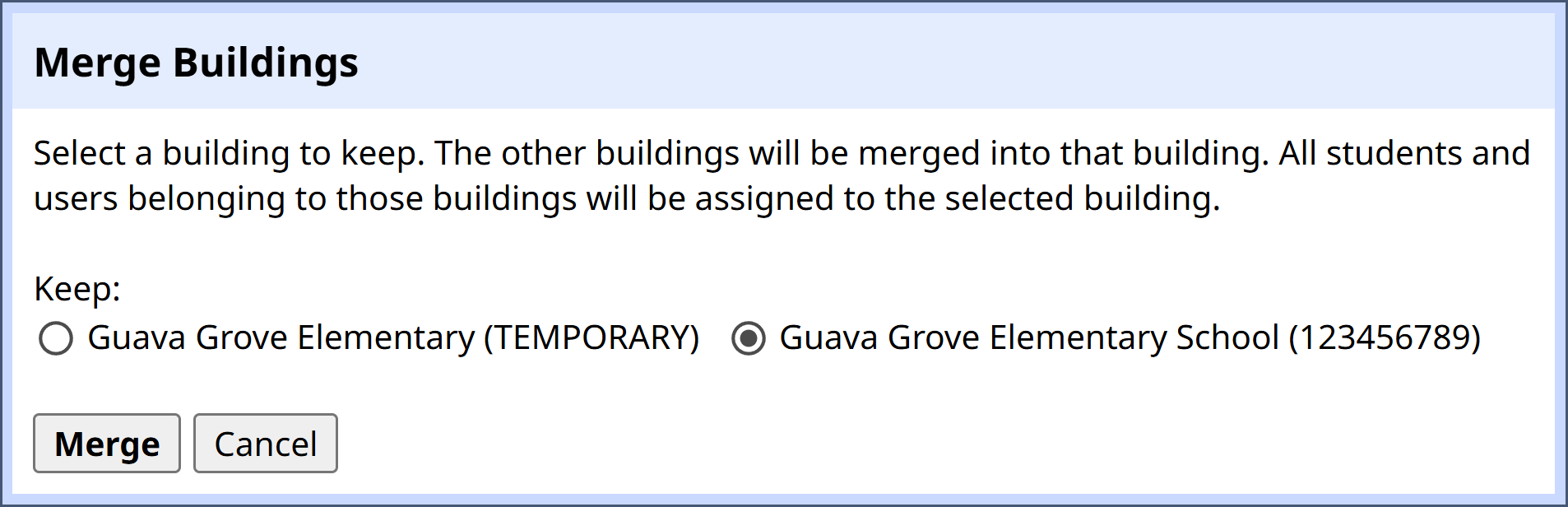
If there are duplicate building records that should be combined, they can be merged. When the new calendar merge functionality is released at a district, if multiple buildings are being merged, their calendars will also merge automatically.

If the building you are keeping has calendars configured, they will be preserved. If the building you are keeping does not have a calendar configured for a given year but the other building does have a calendar, the calendar for that year will be transferred to the building being kept.

lightbulb Tip
If you are merging more than two buildings at once, calendars will still be merged. However, if the building you are keeping does not have a calendar configured for a given year and more than one of the buildings being deleted have a calendar, the system will keep the calendar from the building listed first in the Merge Buildings popup.


info