search
At SameGoal, we’re always looking for ways to increase efficiency and save our users time, and we have an update on the way that will do just that!
In the coming weeks we will be rolling out a new tool that will give administrative users the ability to create new user roles by copying an existing role. Districts often have many roles that are very similar and rather than creating each new role from scratch, users will be able to configure one role, copy it as many times as needed, and make adjustments to the copies.
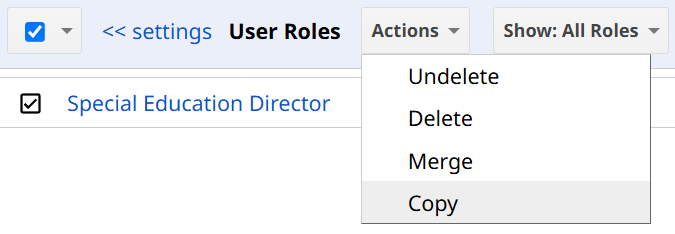
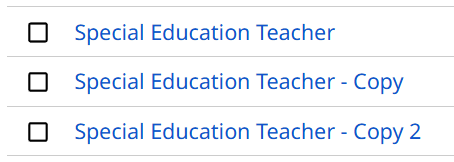
When a role is copied, all form and report permissions will be the same and the new user role name will have - Copy appended to the end. For example, if you copy the Special Education Teacher user role, the new user role will be named Special Education Teacher - Copy. However, if you copy the Special Education Teacher user role again, the new user role name will be Special Education Teacher - Copy 2.