search
Notifications can be sent via in-app bell, email, or web push, and users can specify their delivery preferences for each notification type in notifications settings. Historically most notification types were only delivered via in-app bell by default because we didn’t want to risk overwhelming users by sending too many emails if they happened to receive several notifications.
However, now that email digests are in the process of being released and there’s no risk of sending too many emails, default delivery methods will soon be changing for many notification types. This way users will have the added benefit of being able to access notifications without needing to log in to SameGoal without requiring additional configuration on their part.
Once all updates have been made at your district, these will be the default delivery methods for each notification type:
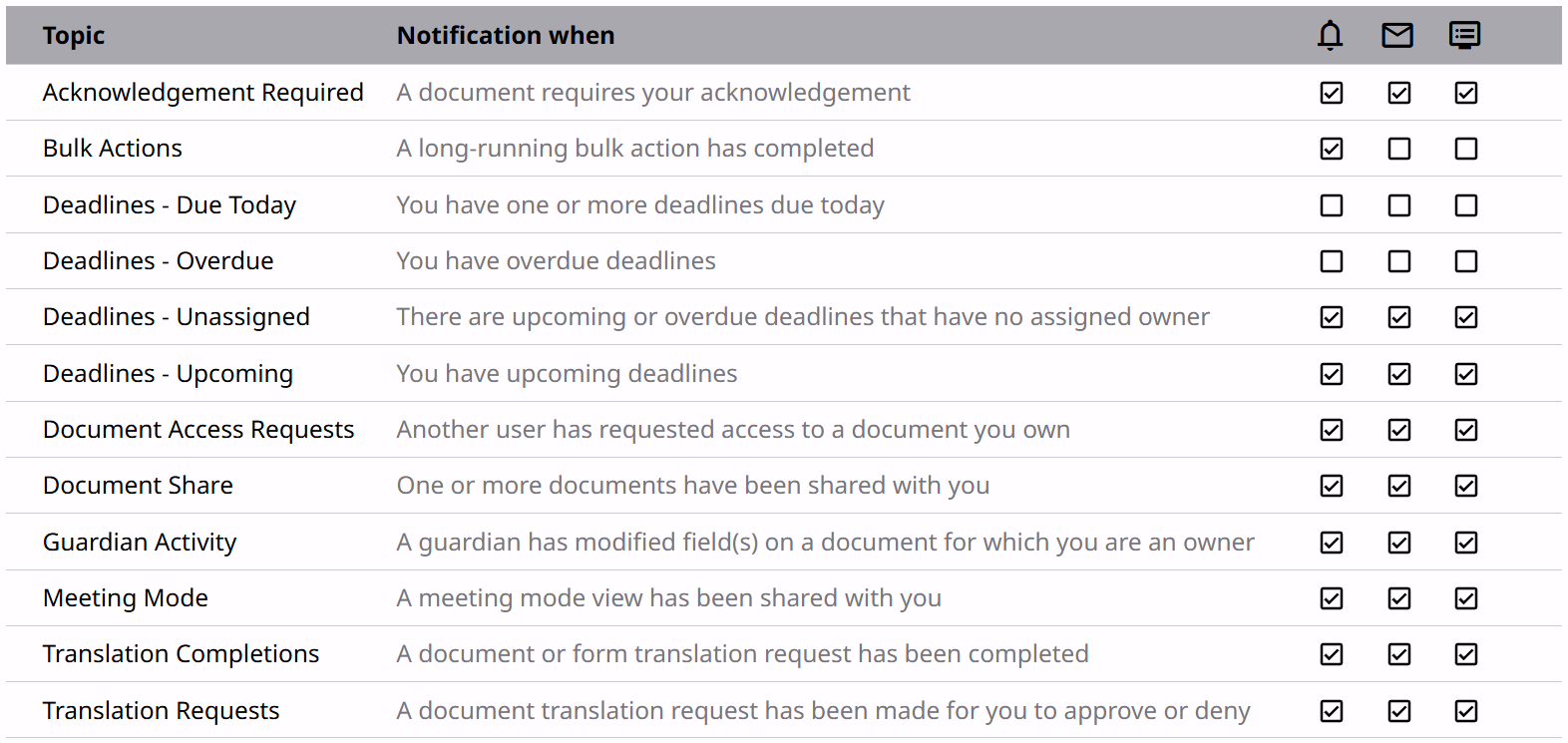
Once the default delivery methods are updated, if you would like to opt out of email or push notifications, you can navigate to notification settings to update your preferences.
Additionally, delivery methods will not be updated if a user has previously manually set their delivery preferences for the given notification type. If you still have the original default settings for a given notification type and do not want them to be updated, you can manually set them before the default behavior changes at your district in order to prevent them from being updated.
For example, if you currently have the original default settings for guardian activity notifications (in-app bell turned on, email and push notifications turned off) and you would like to keep those settings, while on the notification settings page, turn email notifications on and then immediately turn email notifications back off for guardian activity notifications. That way your preferences will remain the same because now they have been manually set.