Updated PDF Import Tool
February 20, 2026
Administrative users are able to bulk import PDFs into SameGoal. These PDFs are then associated with students and included as an attachment to an Upload document so they may be previewed directly in the system.
Previously, this bulk import tool required specific directory structures or file naming conventions. Additionally, it had an upwards limit of ~200,000 files per load (which is not always enough for implementing districts loading historical PDFs).
In order to simplify the bulk import process and support larger imports, we are in the process of rolling out an updated version of the bulk import tool! This updated bulk import tool will help save districts a significant amount of time and will result in higher success rates when associating imported PDFs with students.
Steps
To bulk import PDFs with the new tool:- While logged in as an administrative user, navigate to Settings > PDF Import.
- Select New PDF Import at the bottom of the page.
- Drag a folder from your device into the upload field.
- The directory name must match your SameGoal district domain exactly.
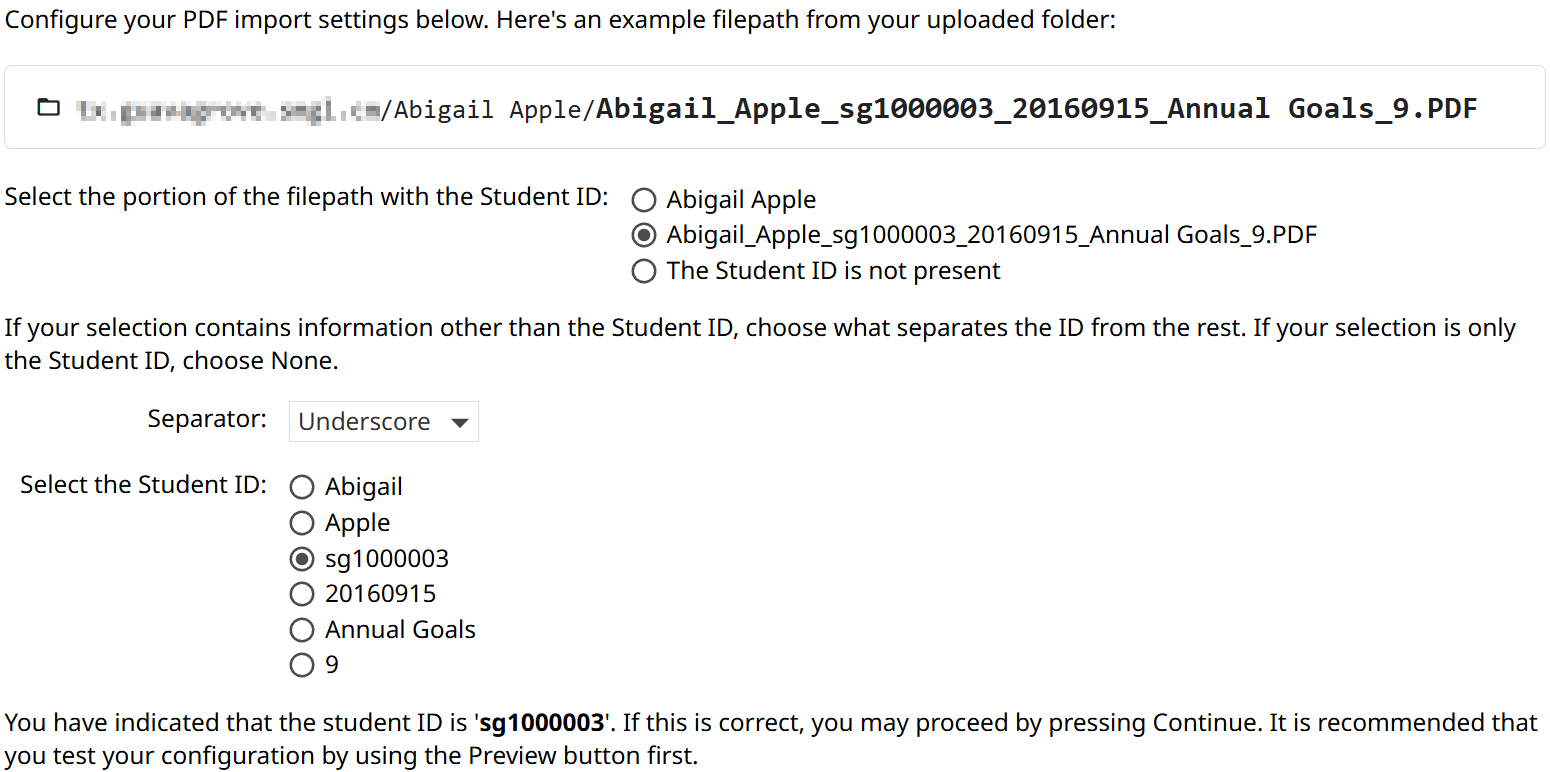
- Configure the upload by indicating where the Student ID is in the example file path.
- You can indicate if the Student ID is in a folder name or the file name. If the portion of the file path that contains the Student ID also contains other information, you can specify how the information is separated. (Recommended)
- If the Student ID is not present, you can also write a regular expression to indicate where the student’s first and last name is or the system can scan the text content of each PDF to search for student information. (Not recommended)
- Once you have configured the upload, hit the Preview button to preview the success rate of the upload.
- If needed, make changes to your directory or upload configurations.
- Once you are satisfied with the preview, click Continue.
While the PDFs are being uploaded, you must keep the tab open. How long this step takes will depend on the size of the upload and your internet speed (it’s typical for the system to process ~one million files per hour). When the upload is complete, a summary of the number of uploaded documents will appear on the screen.
Once files have been successfully uploaded, they will be associated with students in SameGoal. This step will take longer, but you can navigate away from the tab while the association happens. When this step is complete, you will receive an email and can review the results.
lightbulb Tip
If you find PDFs that should have been associated but were not, address any issues and re-run the PDF Import tool. This can be done as many times as necessary to get the desired results.
lightbulb Tip
SameGoal does not store PDFs that were not associated with a student record. It is the responsibility of the district to save and store these documents.