search
As we enter the final stretch of the 2025–2026 school year, now is the perfect time to review your upcoming deadlines and make sure everything is on track.
Compliance is a top priority at SameGoal. That’s why we offer a variety of tools and resources designed to help you stay organized, monitor key timelines, and confidently meet requirements.
Below are a few important deadline-related tools and resources that can help you stay on track and finish the year strong:
SameGoal provides several tools that make it easy to view and track deadlines across students, buildings, and programs.
Each student has a Deadlines tab that displays a table with all upcoming deadlines, past due deadlines, as well as any skipped documents or errors. The table includes the following columns:
All programs with deadlines have an associated report that generates a list of all program deadlines and includes information about what the deadline is, when it’s due, which student it’s for, whom the deadline is assigned to, and more.
Users on the PLUS or PRO edition of SameGoal can utilize in-app report sorting and filtering. Otherwise, report results can be downloaded and imported into a spreadsheet in order to sort and filter the results.
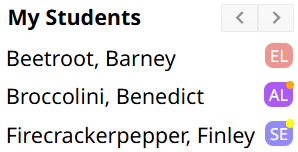
Throughout the system, you will be able to see program badges next to a student’s name if they are currently participating in a special program and users on the PLUS or PRO edition of SameGoal will also see upcoming deadlines badge indicators.
If there are upcoming or missed deadlines for a student, a deadline indicator will appear on the top right corner of the associated program participation badge. Red dots indicate missed deadlines, orange dots indicate a deadline due within the next 7 days, and yellow dots indicate due dates within 30 days. Additionally, when you hover over the program participation icon, you will see a summary of deadlines for the program.
Users on the PLUS or PRO edition of SameGoal have access to the Deadlines calendar in the left menu. By default, this calendar displays all deadlines that are assigned to you. You may view deadlines by day, week, month, or in a chronological list format. You can also filter the deadlines by deadline, building, and grade. Clicking on a deadline in the calendar will display additional information including which student it’s for, which document the deadline was determined from, and what is required to satisfy the deadline.

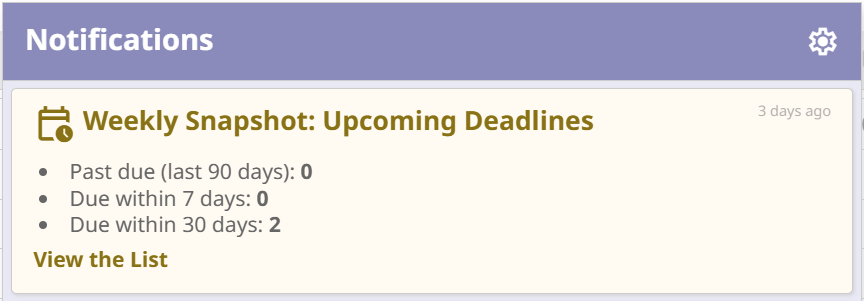
Users on the PRO edition of SameGoal can choose to receive notifications for upcoming or past due deadlines. There are multiple types of deadline notifications:
In SameGoal, there are several different ways to create documents, including ways to create new documents by utilizing deadlines.
Whenever there is a deadline listed on a student’s Deadlines tab, there will be a blue plus button [add] next to the form that needs to be created in order to satisfy the deadline. This feature can decrease the number of clicks that are needed to create new documents and can help limit confusion and make it easier to create the correct document, especially when multiple forms have similar names.

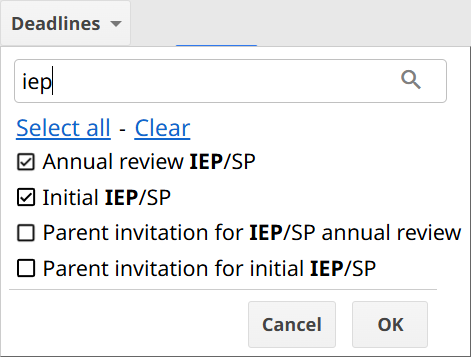
On the Students / create new page, there is a Deadlines filter that returns students based on their outstanding deadlines. This filter can be used in conjunction with the bulk create feature in order to create required documents for relevant students.
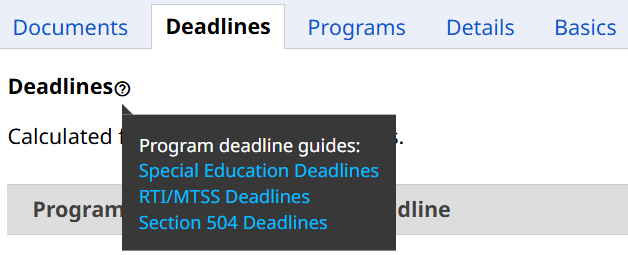
If you ever want to know more about how deadlines are calculated/satisfied, SameGoal maintains program-specific deadline support pages. These support pages list all potential deadlines for a given program and provide details about how the deadline is triggered, when it is due, and what is required.
Some deadlines are labeled as Provisional (denoted by a “P” next to the due date), meaning they are subject to change. This happens when a deadline is calculated based on all available data, but additional data may arise that affects how the deadline is calculated.
For example, if a plan document is due 60 days after consent or 30 days after an evaluation (whichever is sooner), we will calculate the deadline once consent is received. However, once the evaluation is completed, the deadline may need to be recalculated if 30 days after the evaluation date is sooner than 60 days after the consent date.
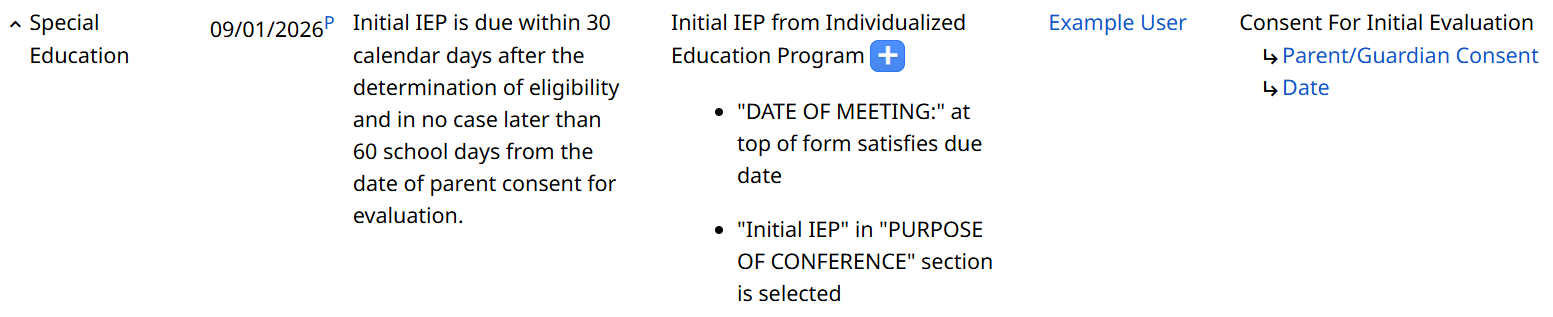
When additional documentation is completed, the due date for the provisional deadline may stay the same or it may be moved sooner, so it’s important to check upcoming deadlines for a student after completing documents in case anything has changed.
SameGoal provides many tools to help administrative users monitor and manage deadlines at the district.
There is a system level report that administrative users can run that returns deadline information for all programs at once. This report returns the same information as the program-specific reports and it also indicates which program the deadline is related to. This report makes it easier for administrative users to monitor deadlines and compliance across the district.
Deadlines can become unassigned if the user who was previously assigned the deadline leaves the district or loses document access. Administrative users can monitor unassigned deadlines using the Unassigned filter on the Deadlines calendar or with the Unassigned deadline notifications. These unassigned deadlines can be reassigned by transferring ownership of the document that triggered the deadline.

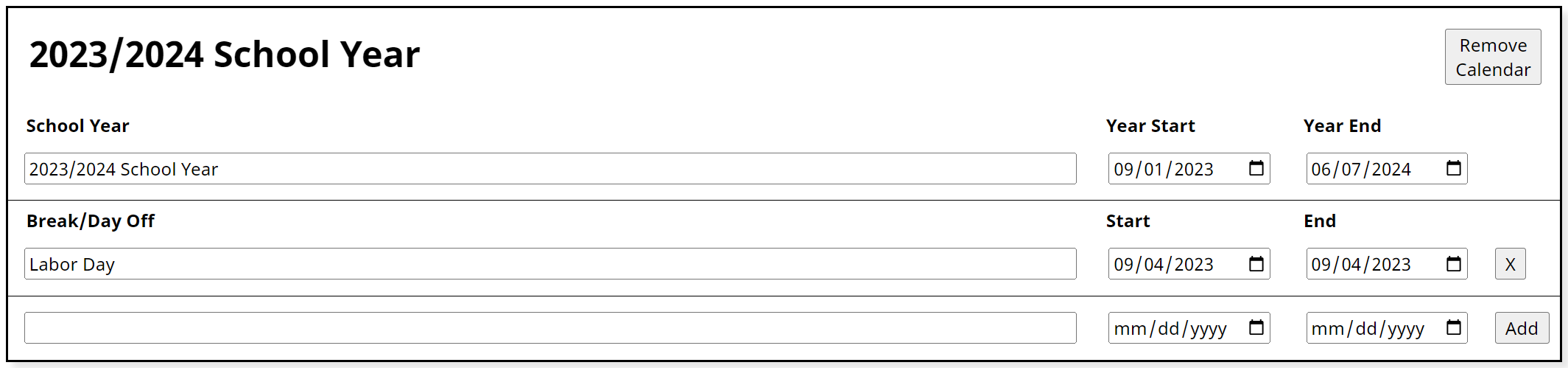
Administrative users are able to create school calendars that can affect how deadlines are calculated. Buildings can have their own building-specific calendar, otherwise each district will have a District Default calendar. If there is no Building calendar or District Default calendar, it could potentially cause data issues.

It’s best to fill out calendars at least three years into the future (with at least a start and an end date) to accommodate for reevaluation deadlines.